Two honest paths
GitHub Releases hosts the signed MSI files. Open MarkHopper24/barcodrod.io releases, match the file name, and run it. The Microsoft Store listing is the other official door when that channel is already approved. Do not hunt a search result named setup. Do not run a helper that asks you to fetch the file again from a different site.
Usual Windows pick is barcodrod.io-*-x64.msi on x64. ARM64 picks the arm64 MSI. Match the file name on the list. Prefer the current release tag from GitHub Releases rather than a hardcoded dotted version. Releases map: releases.
Why MSI is the mapped door
README Method 3 describes the standalone MSI as a classic offline installer that does not require Microsoft Store license acquisition. That is the qr code generator path this guide maps for locked-down or offline PCs. Store and MSIX remain supporting official doors.
MSI howto: how to install the MSI. Offline notes: offline MSI. Architecture: x64 or ARM64.
What to skip
Skip a page that wraps the MSI and adds a toolbar. Skip a mirror outside GitHub Releases or the Store. Skip Softonic. Skip CNET Download pages that inject their own downloaders. A wrapper that ranks for qr code generator is still the wrong binary.
Related safety: is it safe. Install: Windows install. Repo: GitHub.
SmartScreen and signing
SmartScreen may warn on a first run of a newly downloaded MSI. Prefer the official asset so the publisher matches upstream. README code signing policy states MSI builds are signed via SignPath Foundation. Store builds are signed through Microsoft Store.
If your lab image blocks unknown installers, use a PC you control or an already approved Store channel. Do not bypass policy with a random mirror. Machine chooser: for this computer.
After a clean fetch
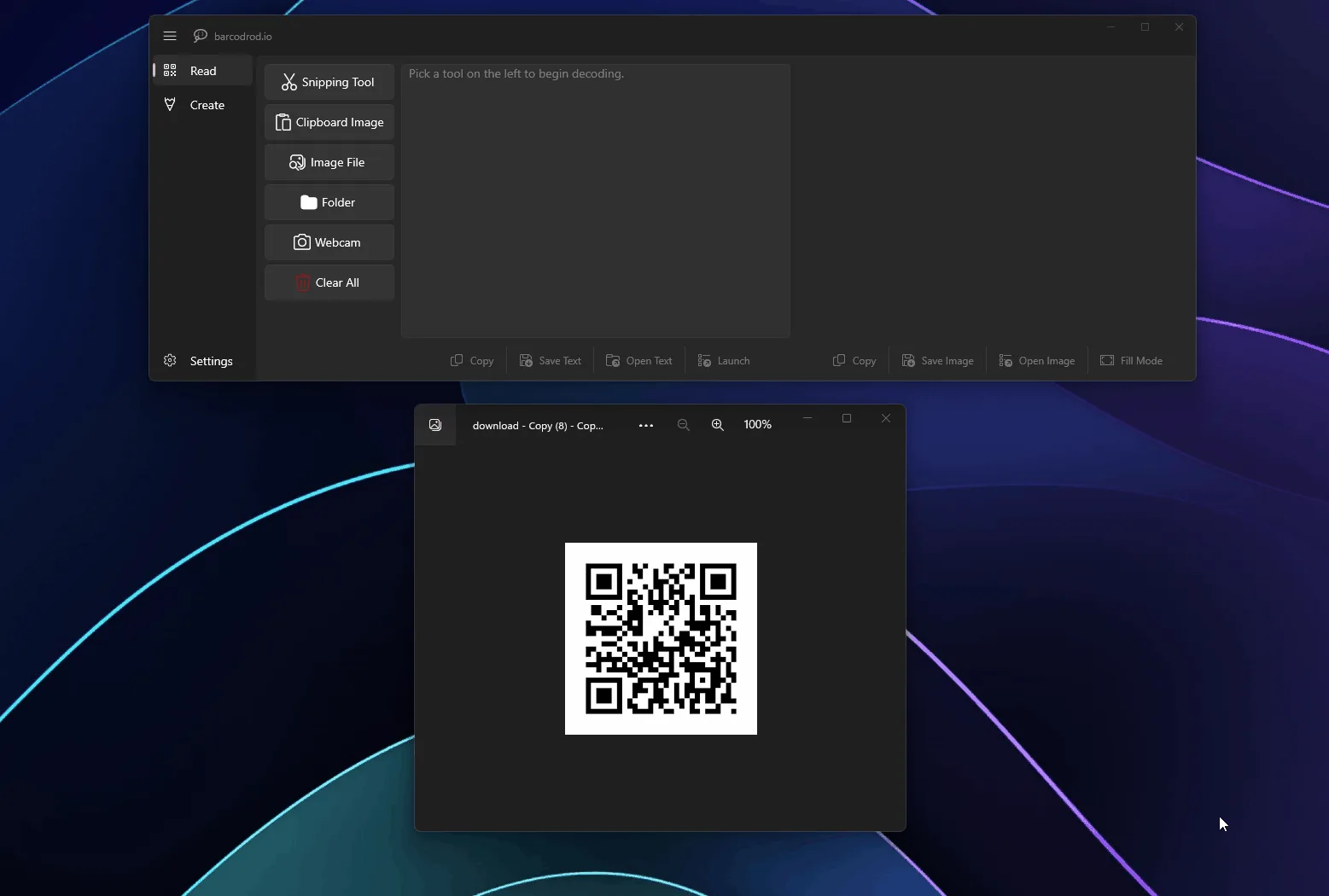
Run the MSI, launch barcodrod.io, open Create, and save one short URL as a QR image. That proves the qr code generator path before you try Wi-Fi or vCard helpers. First hour: installed. First run: first run.
Keep one update door. Return to GitHub Releases for the next MSI, or use Store updates when that is how you installed. Uninstall guide: update and uninstall.
Checklist before you leave
Confirm the file name on GitHub Releases matches barcodrod.io-*-x64.msi or the arm64 MSI. Confirm Windows 10 or 11. Confirm you will open Create after install so the qr code generator path is proven with one saved image.
- Prefer one update door for this qr code generator.
- Prefer SignPath-signed MSI assets from the official repository.
- Prefer local Create helpers for Wi-Fi and vCard when payloads repeat.
- Skip Softonic-style wrappers that rename the setup.
When a lab image blocks the MSI
If a lab image blocks the MSI, use an approved Microsoft Store channel for the same product line instead of a random mirror. If SmartScreen warns, re-check that the download came from GitHub Releases for MarkHopper24/barcodrod.io.
Related reading spans releases, GitHub, download-safe notes, machine setup, MSI howto, Store comparison, offline MSI detail, first run, Wi-Fi and vCard helpers, safety, troubleshooting, and update guidance. Start with the install guide when the app is not on the PC yet.
Payload accuracy still wins
A desktop qr code generator does not replace careful payload entry. Double-check SSID spelling, contact phone fields, and short URLs before you print a stack. Error correction helps damaged prints; it cannot fix a wrong string.
When you compare browser toys with the MSI, remember offline installs and local history. When you compare Store with MSI, remember license acquisition differences documented upstream. Keep the keyword job clear: generation first, decode second. A second Create proof after every reinstall keeps the qr code generator habit boring and reliable on shared PCs.
Operators who print weekly should keep a short trusted sample payload, a known-good phone for scan checks, and a written note of whether the PC used MSI or Store. That small ritual prevents most support tickets around this qr code generator workflow.